Setup Guide
ZERNIQ A3 DTF Printer Installation Guide
Use 64-bit Windows 10 or 11. Install the verified runtime package, printer driver, and SPIDE RIP in that order, then connect the supplied RIP USB license dongle.
Complete each verification before moving to the next phase. A Microsoft Visual C++ 2015–2022 message with code 0x80070666 during SPIDE setup means that the newer v14 runtime from Step 1 is already installed; keep the newer version, close that message, and return to SPIDE setup. Also complete Step 4 to import the printer package into SPIDE before printing.
First ink fill does not start?- A Windows 10 or Windows 11 computer showing “64-bit operating system, x64-based processor” under Settings > System > About
- Administrator access, permission to restart Windows, and Microsoft Defender or other security software kept enabled
- Your ZERNIQ A3 DTF Printer and a known-good USB data cable
- A direct USB port on the computer; avoid an unpowered hub during installation
- The RIP USB license dongle supplied with the printer; do not format, erase, repartition, rename, repair, or use it for ordinary file storage
Step 1
Install the Windows runtime prerequisites
Verify and install the prerequisite package, then restart Windows before opening the printer-driver installer.
Confirm the computer is supported
Open Settings > System > About and read System type. Continue only when it says 64-bit operating system, x64-based processor. The current driver and SPIDE package are not approved by this guide for 32-bit Windows, x86-based PCs, or ARM-based/ARM64 PCs; contact ZERNIQ support instead of trying to force the installation.
Download, hash, and inspect the runtime ZIP
Download the runtime prerequisite package from this page. In PowerShell, run Get-FileHash on the ZIP with -Algorithm SHA256 and continue only if the complete value is 5156b13e06d2cf7e5c43b2c50c36f7334e0fd3a217519725d12db130a9d8a6ae. Extract All. The folder must contain exactly install_all.bat plus 12 vcredist .exe files. The BAT is an unsigned third-party helper, so inspect the folder first. Each vcredist EXE must show a valid Microsoft Corporation signature in Properties > Digital Signatures. Stop if the hash, file count, or any signature differs, or if security software detects or quarantines a file.
Run the helper and read every installer result
Keep the printer disconnected. Right-click install_all.bat and choose Run as administrator. Allow each Microsoft installer to finish. The helper does not check child exit codes and can print “Installation completed successfully” even when an installer failed, so do not use that final line as proof. On 64-bit Windows, both x86 and x64 runtime components are expected.
Separate an already-installed v14 message from a real failure
If Microsoft Visual C++ 2015–2022 reports 0x80070666 and says another version is already installed, keep the installed newer v14 runtime, click Close, and let the helper continue. Do not uninstall or downgrade the newer runtime. This exception applies only to that exact Microsoft product and message. For any other error, record the product name, code, and log link and contact support. Restart Windows after the helper finishes before continuing.
Step 2
Install the printer driver
Install the signed printer driver and prove that Windows detects the printer and its USB port before installing SPIDE RIP.
Download and verify the driver ZIP
Download the driver ZIP from this page and verify its SHA-256 in PowerShell: 90bd8e7763c6b9d0128d31c50a9973f20acc61082d8fd0584f408c5b197d24b7. Extract All. The extracted folder must contain exactly one file named Print Driver.exe. In Properties > Digital Signatures, confirm that the signature is valid and the signer is SEIKO EPSON CORPORATION. Stop if the hash, file name, file count, or signature differs.
Start the driver with the printer disconnected
Leave the printer USB cable disconnected, right-click Print Driver.exe, and choose Run as administrator. Review the setup prompts and choose the USB connection when offered. Do not connect the printer early, because Windows can bind it to a generic or incomplete device entry.
Connect only when the driver asks
When prompted, connect a known-good USB data cable directly to the computer and turn the printer on. Wait for detection and port configuration. If it is not detected, check power, reseat both cable ends, try another direct USB port or known-good data cable, and look in Device Manager for an Unknown device or warning icon. Do not continue while detection is incomplete.
Verify the driver before Step 3
Finish only after the installer reports success and Windows shows the new printer without a warning icon. Confirm that a USB printer port was created. If the installer failed, the device remains unknown, or no USB port exists, save the exact message and contact support before installing SPIDE RIP.
Step 3
Install SPIDE RIP
Install the current verified SPIDE executable after the driver works, handle its older bundled VC++ prerequisite correctly, and verify the supplied license dongle.
Download and verify the current SPIDE package
Download the SPIDE RIP ZIP from this page and verify its SHA-256 in PowerShell: 54cf8064a77b7bf2c013668054a5e5a84ed400be99b3e237eea79a2e0168b918. Extract All. The folder must contain exactly one file named SPIDE RIP V2.24.4.10142025-x64.exe; the current public package does not contain SPIDE RIP.7z. The outer installer is not digitally signed, so the exact ZIP hash and file name are required release checks. If the hash or contents differ, stop.
Run the verified SPIDE installer after the driver
Right-click SPIDE RIP V2.24.4.10142025-x64.exe and choose Run as administrator only after Step 2 passes. Keep Microsoft Defender or other security software enabled. If Windows only warns that the publisher cannot be verified, recheck the exact ZIP hash before deciding to continue. If security software reports malware, blocks, or quarantines the file, do not disable protection or create an exclusion; stop and contact support.
Handle the bundled Visual C++ 14.32 message
SPIDE setup includes Microsoft Visual C++ 2013 x64 and Microsoft Visual C++ 2015–2022 x64 14.32.31332. If the 2015–2022 window shows 0x80070666 because a newer version is already installed, click Close, keep the newer runtime from Step 1, and return to SPIDE setup so it can finish. Do not uninstall or downgrade the newer runtime. For any other code, or if the main SPIDE setup does not resume or finish, restart Windows once and retry this same hash-verified installer once. If it still fails, stop and send the exact error and screenshot to support.
Connect the license dongle and verify the first test job
Insert the supplied RIP USB license dongle into a direct USB port when SPIDE requests it, and keep it connected while using the licensed software. Do not format, erase, repartition, rename, repair, or store files on it. Open SPIDE RIP, select the supplied profile for your ZERNIQ A3 DTF Printer, confirm the assigned printer and USB port, and verify license recognition before creating a test job. If the profile, printer, port, or license is missing, close SPIDE, reconnect the device to another direct USB port, restart Windows if needed, and contact support before printing.
Step 4
Import the printer package into SPIDE RIP before printing
Required after installing SPIDE RIP. Add the supplied A3-DTF-L18050R.mt_driver package inside SPIDE; installing the Windows printer driver alone does not complete this setup.
Download the SPIDE printer package
Use the download button below and save A3-DTF-L18050R.mt_driver. Keep the .mt_driver extension; do not rename it to .zip, extract it, or run it as an installer. Its SHA-256 is 806f287aa535f6f0faa85cba69db212bd708949732240033ad6f0ba22bd8fc75. This package is imported inside SPIDE RIP and is separate from the Windows driver in Step 2. The supplied recording shows SPIDE RIP V2.24.4.
Open Printer management and choose Import printer
In SPIDE RIP, open Printer management from the printer/settings icon. Click Import printer, highlighted in red in the screenshot, to import the supplied .mt_driver package.
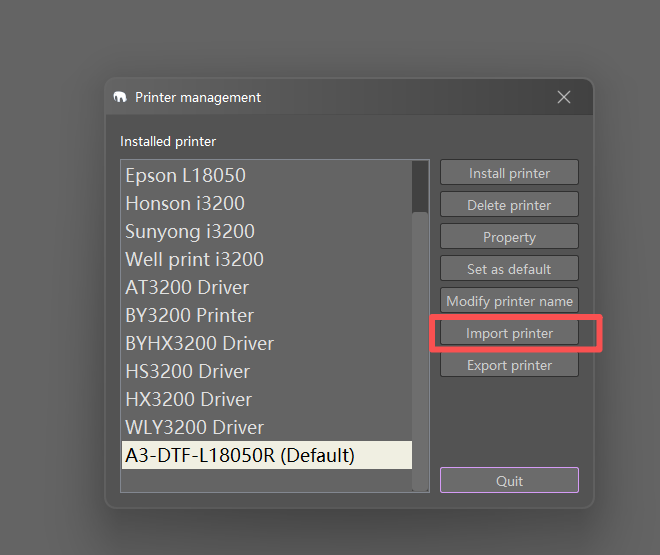
1 — Click Import printer, highlighted in red. The printer list is an interface example. Select the exact .mt_driver file
In the file-selection window that follows, select the original A3-DTF-L18050R.mt_driver file, then click Open. Keep the original extension and wait for SPIDE to return to the printer list. The image below is only a filename reference, not evidence of the Import printer dialog.
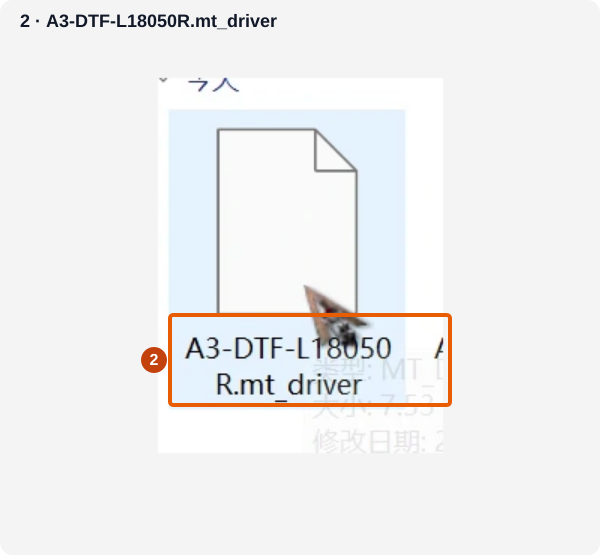
2 — Filename reference: A3-DTF-L18050R.mt_driver. The name wraps onto two lines in this reference image. Set the imported entry as default and check it
Select A3-DTF-L18050R in the printer list and click Set as default (marker 3). Confirm that the entry reads A3-DTF-L18050R (Default) (marker 4), then close the management window. Before preparing the first job, check that its Printer name is A3-DTF-L18050R and that the printer connection and RIP license are recognized. Use this exact SPIDE entry for the supplied package. If the entry is missing or import fails, save the error and contact support before printing.
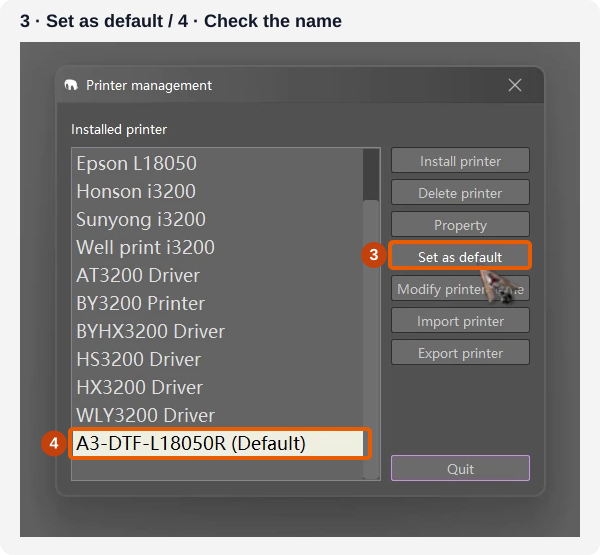
3 — Set as default. 4 — Confirm A3-DTF-L18050R (Default) appears in the list.
Still blocked at a step?
Contact support with the phase and step, exact product/error code, screenshot or log link, Windows version and System type, whether Device Manager detects the printer, and whether every published SHA-256 matched. Do not send a license key or other secret.