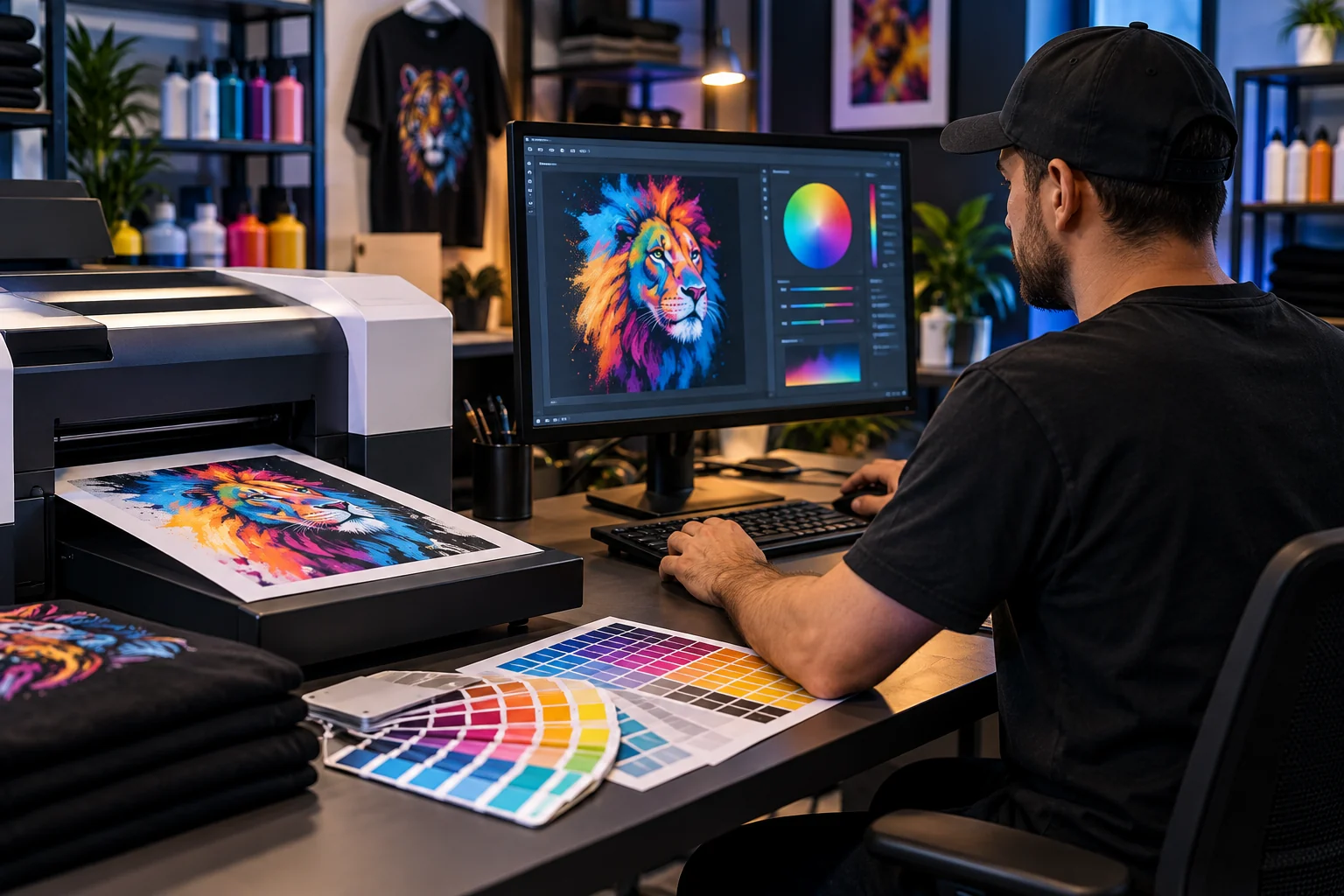
Check the output before changing settings
A color difference does not identify its cause. Check the nozzle pattern and ink supply, then review the source artwork, RIP settings, and the profile supplied for your printer and consumables. Do not assume the profile alone is responsible.
Compare a finished transfer
Use a small test design and evaluate the pressed result on the intended fabric under consistent lighting. Change one setting at a time and record the result. Brightness and saturation adjustments are not a substitute for a suitable color-managed workflow. Ask support if the supplied profile or printer selection is unclear.
Start with a controlled comparison
A screen image and a finished textile transfer are different outputs. Before replacing a profile, define the mismatch: a changed hue, missing detail, weak white coverage or a difference that appears only after transfer. Keep an approved physical sample if one exists; do not claim a match from a phone photo alone.
Record the source file and embedded color profile, printer and SPIDE version, selected output profile, ink and film identities, garment, and the curing and pressing instructions actually followed. Mark unknown items as unknown rather than copying settings from another printer.
Locate the first stage that differs
Check that the same original file reaches the RIP and that the intended printer and supplied output profile are selected. Save a screenshot of the current settings before changing them. Compare the preview, film output and completed sample as separate stages.
If the problem appears only after curing or pressing, retain the material identities and actual process record for support. A change at that stage should not automatically be treated as an artwork-profile fault.
Make a test that can explain the result
Choose one change supported for your model and version, keep the file and materials fixed, and label the resulting sample. Record what changed and whether it improved the defined defect. Avoid changing color handling, ink limits, white-layer settings and heat conditions together.
Ask support to confirm the correct profile when the output profile is missing or its intended ink and media are unknown. Stop customer production if the result is unacceptable. No universal ICC file, rendering intent or numerical adjustment is approved by this article.
What the color-profile source supports
Adobe explains how document and device profiles relate to output conditions. That principle helps organize a comparison; Adobe Photoshop instructions do not prove which SPIDE controls or ZERNIQ profile settings to use.
Check the verified installation prerequisites and packages.
Contact support with your model and diagnostic record.